
Blog/Kindle
Can You Listen to Audiobooks on Kindle? Yes, Even Without Audible
Hear any Kindle book you own as an audiobook with Readio on iPhone or Android, and see when Audible on a Kindle, Kindle+ audio or Assistive Reader will do.
Can you listen to audiobooks on Kindle?
Yes. Readio reads any Kindle book you own aloud on iPhone or Android, including those with no audiobook, in voices we think are the best synthetic voices you can hear a book in. A Kindle from 2016 on plays Audible audiobooks over Bluetooth, but only when you own the audiobook too.
Can you listen to audiobooks on Kindle? Yes, and for more books than Amazon sells audio for. Readio, our app for iPhone and Android, reads any Kindle book you own aloud, including the ones Audible has never recorded, in voices we think are the best synthetic voices there are for a book. A Kindle from 2016 or later plays Audible audiobooks through Bluetooth headphones, but only for books with an Audible edition, bought on top of the ebook.
This guide starts with the way that works for every book in your library, then covers each of Amazon’s ways: Audible on a Kindle or in the Kindle app, audio that comes with Kindle+, and the free Assistive Reader. Each section says what the way needs and where it stops.
Your ways to listen at a glance
There are three ways to hear a Kindle book, and they start from different places. Readio starts from the ebook you already bought. Audible starts from a recording someone made of it. Assistive Reader, Amazon’s free read-aloud, starts from the ebook too, but only some ebooks.
| Category |  Readio |  Audible |  Assistive Reader |
|---|---|---|---|
| Books you can hear | Every Kindle book you own, Kindle Unlimited too | Books with an Audible edition | Books with Enhanced Typesetting |
| Kindle books with no audiobook | Yes, it reads the ebook | No, there is nothing to play | Only with Enhanced Typesetting |
| What you pay | Readio Pro: $9.99 a week or $79.99 a year | The audiobook, on top of the ebook | Free |
| Voice | Natural synthetic voices, the best we know of | A human narrator | Your device or Kindle voice |
| Kindle e-reader | No: iPhone and Android | From 2016, over Bluetooth | From the 11th generation |
| Speed | 0.5× to 3× | In the full player | Adjustable |
| Sleep timer | 10 minutes to an hour | In the full player | Not stated |
Amazon and Audible details from their own help pages, checked November 10, 2026. Features and prices can change.
The short version: Readio reads the whole library, including every book Audible does not have, and you pay once for the ebook. Audible is the choice when the book has an Audible edition and you want a person reading it.
How to listen to any Kindle book with Readio, step by step
Readio reads your Kindle library itself, so it does not need an Audible edition, a Kindle device or Enhanced Typesetting. It works on iPhone (iOS 16.4 or later) and Android. You need an Amazon account with Kindle books in it.
- Install Readio from the App Store or Google Play, open it and tap Get started.
- Answer the few questions about how you read, tapping Continue after each. Your answers set your first voice and speed.
- On Pick the voice that reads to you, tap a voice to hear it, then choose a speed.
- Choose Yearly or Weekly and tap Start listening. Listening needs Readio Pro; the app is free to download.
- On the home screen, tap the Connect your Kindle card. Readio opens the Kindle Cloud Reader, and you sign in on Amazon’s own page. Your password goes to Amazon only.
- Your books appear with their covers and progress. Tap one, then press play.
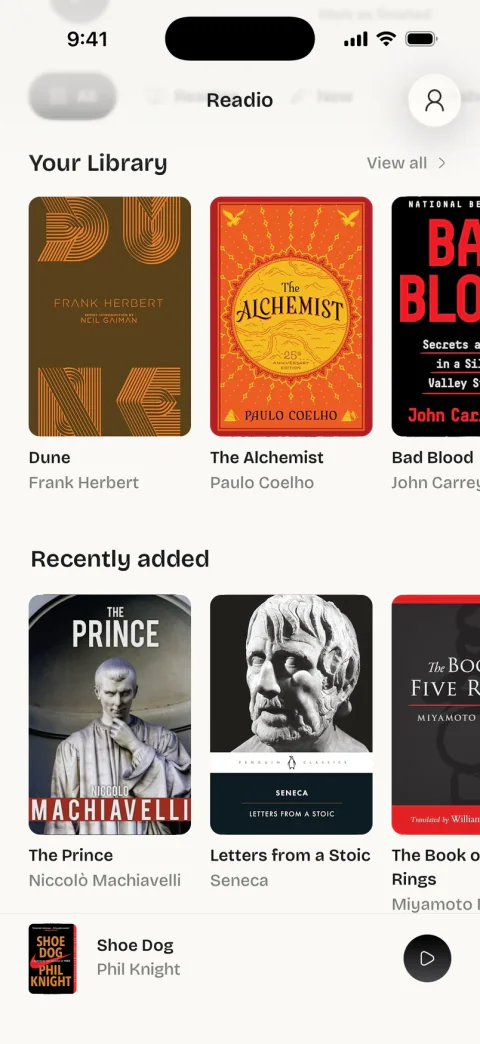
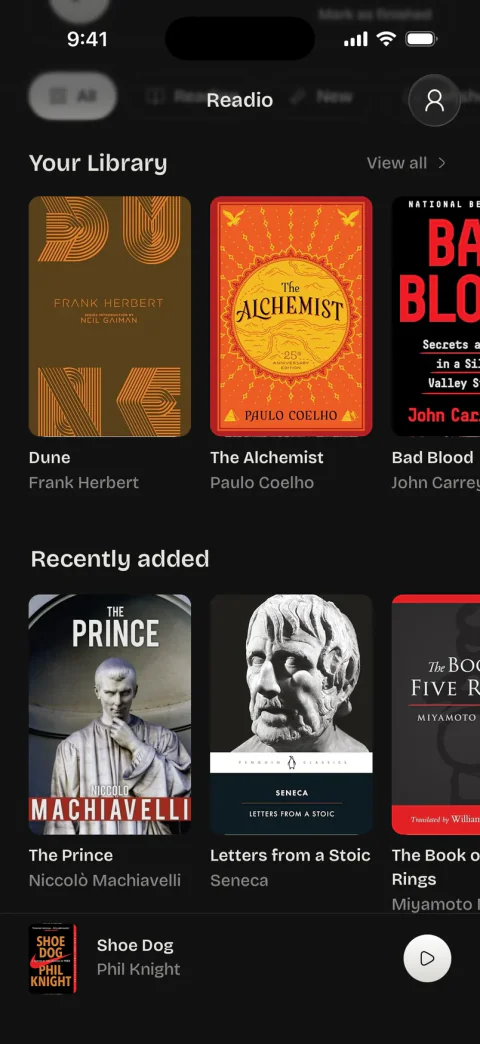
Readio reads from the page you are on and turns the pages for you. When you stop and come back later, it starts from the exact page where you stopped. The set-up guide and the Kindle connection guide show each screen.
Lock the phone and keep listening
Press play, then lock the phone. Readio keeps reading, page after page. The lock screen shows the book’s title and author with play, pause and a 5-second skip back and forward; on Android the same controls sit in the notification. This is the part that makes a Kindle book feel like an audiobook: the phone goes in a pocket and the book carries on. The screen-off guide has the details.
Choose a voice and a speed
In a book, the player sits at the bottom of the screen. Tap the voice icon at its left to open Settings, and under Narrator pick a voice. Readio has 40+ voices: each language has its own, and the multilingual ones, Ava and Andrew among them, read every language Readio reads. Tap the speed chip at the right of the player (it shows 1× at first) to change the speed, by 0.1× with − and +, or straight to 0.8×, 1.0×, 1.2×, 1.5×, 2.0× or 2.5×. The full range is 0.5× to 3×.
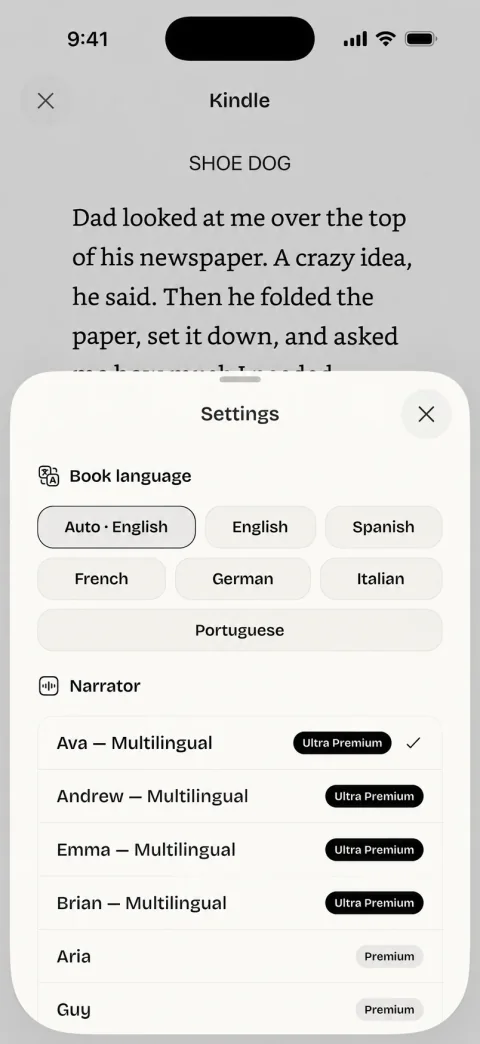
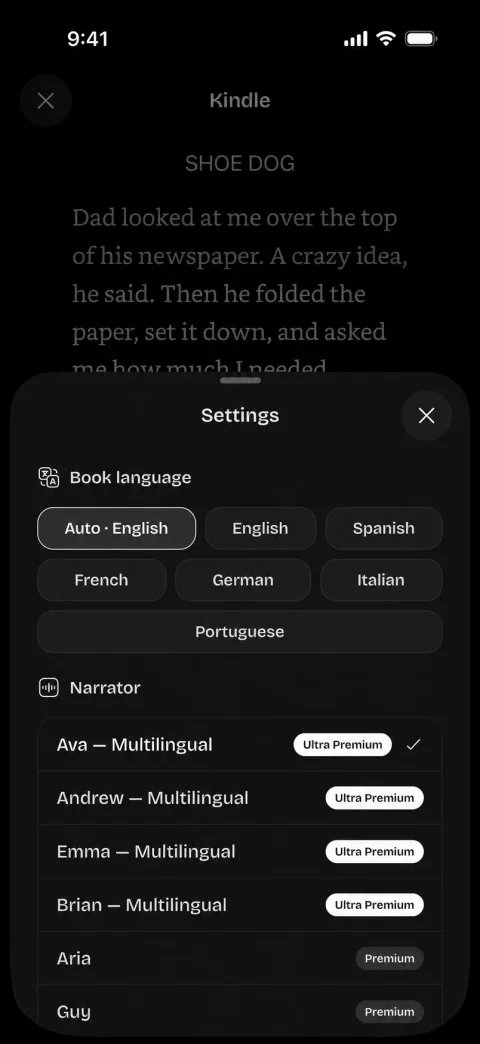
Two more settings are in the same sheet. Book language is set to Auto, which uses the language the book states; pick one if a book comes out in the wrong accent. Sentence pause is the silence between sentences, from 0 to 1,000 ms, with Reset taking it back to 250 ms. A shorter pause makes a dense nonfiction book move faster; a longer one gives a novel room.
Fall asleep to a book
In the same sheet, Sleep timer stops reading after 10, 15, 20, 30 or 45 minutes, or an hour. A moon with the minutes left shows above the player while it runs. Next time you open the book, Readio starts from where the timer stopped it.
What Readio reads, and what it does not
Readio reads every Kindle book you bought and the books you borrow through Kindle Unlimited, which Amazon renamed Kindle+. It reads them in English, Spanish, French, German, Italian and Portuguese, each in the language the book states. That covers the books Amazon has no audio for: the backlist title that was never recorded, the small-press novel, the Kindle+ borrow with no headset icon.
A few books are out of reach. Comics and books made mostly of pictures have nothing to read aloud, and Readio says so: “This book is made of pictures. Readio cannot read it yet.” Books that Amazon opens only in the Kindle app, such as some books in Arabic, will not open either, because Readio reads through Amazon’s Kindle web reader. The which books guide keeps that list.
Be clear on the rest of what it is:
- A synthetic voice. Readio makes the voice from the book’s text, and we think its voices are the best synthetic voices you can hear a book in. They are not a person, though: they do not do accents or act a scene. If you want an actor’s performance of a novel, buy the Audible edition.
- Your library, not a store. Readio does not sell books and does not play Audible audiobooks. Those stay in the Audible app.
- Online. Readio makes the voice as it reads, so it needs an internet connection. Pages you have heard before play again from the phone.
- Paid. The apps are free to download and listening needs Readio Pro: $9.99 a week or $79.99 a year in the US, with no free trial in the apps. The pricing page has the details.
- Independent. Kindle is Amazon’s trademark. Amazon does not make or endorse Readio.
Try it on a book you own.
Sign in to Kindle and press play.
Audible audiobooks on a Kindle e-reader
If you own the Audible edition of a book, a Kindle e-reader can play it. Amazon’s Bluetooth help page sets the line: “Only devices released during or after 2016 support Bluetooth connectivity.” A Kindle has no speaker and no headphone jack, so the sound goes to Bluetooth headphones, earbuds or a speaker. An older Kindle can still show the book; it cannot play the audio.
To pair headphones (the menu names differ a little between models, so each step gives both):
- Put the headphones in pairing mode near the Kindle.
- Open Quick Actions or tap the Menu icon, then All Settings or Settings.
- Tap Wi-Fi & Bluetooth or Wireless, turn Bluetooth on, and tap Bluetooth Devices.
- Tap your headphones, then Connect. If a PIN appears, tap Confirm, then Yes.
Then, as Amazon’s reading and listening page describes, look for the headphone icon on the book’s cover in your library, download the audiobook over Wi-Fi, open the book, tap the top of the screen and tap the headphone icon, then Play. To go back to the text, tap the screen and tap the book icon. The ebook opens where you stopped listening.
That switch between text and audio on one device is what the Kindle does best, and Readio does not run on a Kindle e-reader at all. If you read on a Paperwhite and own the audiobooks, this is the way.
Audible narration in the Kindle app
The free Kindle app on iPhone and Android plays the same Audible audiobooks through the phone’s speaker. Amazon’s narration help page gives four steps: open the book in the app (tap Sync in the menu if it is missing), tap the marked area to download the audiobook, tap play, and tap the small player to open the full player with the narration speed and a sleep timer. The book icon takes you back to the text.
The same page states a limit: “To experience Immersion Reading and use the Audible player in Kindle apps, titles must be purchased.” A borrowed book can keep its place in sync, but the player in the Kindle app is for bought titles.
How Amazon sells the audio
Every Amazon way above needs an Audible edition of the exact book, and there are two ways to get one.
Buy it. Audible’s Read & Listen page says: “You’ll need both the eBook and audiobook for that title.” A book with an Audible edition offers the narration on its Kindle Store page, priced per book. Owning the audiobook does not give you the ebook, and owning the ebook does not give you the audio. Read & Listen is the pairing; Immersion Reading is reading and listening at once, which Audible calls “karaoke for books”.
Borrow it with Kindle+. Kindle Unlimited became Kindle+ on October 22, 2026, according to Amazon’s Kindle+ explainer. It costs $11.99 a month in the US, sits outside Prime, and has narration for “thousands of Kindle+ titles”. Amazon’s Kindle+ help page says to look for the headset icon on a book’s page, and its Read & Listen troubleshooting page says members who borrow a title under Books with Audio get both versions automatically.
Most Kindle+ books have no audio. Audible’s own page says “the audiobook isn’t always included”. A borrowed book with no headset icon is ebook only on Amazon’s side. Readio reads it all the same, since it reads the borrowed ebook.
Kindle’s free read-aloud: Assistive Reader
Amazon’s own text-to-speech is Assistive Reader. It is free and lights up the words as it reads.
On a Kindle, Amazon’s Assistive Reader page for Kindles lists the Kindle 11th generation and newer, the Scribe and the Colorsoft, reading in English, Spanish, French, German and Italian. Open the book, tap the top of the screen, tap Aa, then More, and turn on Assistive Reader. It plays through Bluetooth headphones, so pair them first.
In the Kindle app, the Assistive Reader page for the apps lists iPhone, iPad, Android, Mac and Fire tablets, using “your device’s OS-level Text-to-Speech engines”. The path is the same: Aa, More, Assistive Reader.
Both have one gate: the book needs Enhanced Typesetting. On the book’s Kindle Store page, look for “Enhanced Typesetting: Enabled”. If it says “Not Enabled”, Assistive Reader will not read it. It also pauses when you open the menu or make a highlight, and it reads in whatever voice your device has built in. When it reads your book and the voice suits you, use it; it costs nothing. We set it against Readio point by point on Readio vs Kindle read-aloud.
What goes wrong, and the fix
These are the problems people describe most, Readio’s and Amazon’s.
“The book I want has no audiobook, and Assistive Reader is greyed out.” That is a book with no Audible edition and no Enhanced Typesetting, and Amazon has no way to read it aloud. Open it in Readio instead.
“Readio says my book is made of pictures.” It is a comic or picture book, and there is no text to read. A book that opens only in the Kindle app will not open in Readio either.
“My books disappeared from Readio.” Amazon signs you out now and then. Open Settings (the person icon at the top right of the home screen), tap Open Kindle Reader and sign in again.
“Readio reads in the wrong accent.” The book states the wrong language, or none. Tap the voice icon in the player and set Book language.
“My Kindle has no headphone jack.” None of the current ones do. Use Bluetooth earbuds, headphones or a speaker.
“The audiobook is stuck on queued.” Check that the Kindle is online by opening a Kindle Store page, then restart it. If it is still queued, remove the download and download it again, and free up storage: audiobooks take far more room than ebooks.
“There is no headphone icon on the book.” You do not own the matching audiobook, or the ebook and audiobook are different editions that Amazon has not linked. If the ebook’s Kindle Store page offers to add narration, they are linked.
“The Kindle will not find my headphones.” The earbuds are often still connected to your phone, which takes them out of pairing mode. Turn Bluetooth off on the phone and try again. Amazon’s Bluetooth page adds: update the Kindle, then restart both.
“Reading and listening are out of step.” Amazon’s troubleshooting page lists the checks: Wi-Fi is on; Sync Settings is on under Preferences in Manage Your Content and Devices; the app and the Kindle are up to date; the book has no pending Update available. Last, remove the book’s download, sync, and download it again.
What each way costs
Assistive Reader costs nothing beyond the book, and an Audible narration costs whatever its Kindle Store page shows, once per book. Kindle+ is $11.99 a month in the US, and the audio comes free only on the titles marked with the headset icon. Readio Pro is a flat $9.99 a week or $79.99 a year in the US, and it covers every book in your Kindle library, bought or borrowed.
So the sums depend on how many books you want to hear. For two or three books a year, each with a good narration, add up their audiobook prices: that may come to less than a year of Readio. A backlog of ebooks you already paid for, most with no Audible edition, is where a flat plan pays off. The weekly plan suits one long book or a trip.
Which should you choose
Pick Readio for
- Kindle books with no audiobook
- Kindle+ books without the headset icon
- Hearing a book you own without buying it twice
- Listening with the phone locked, with a sleep timer
Pick Audible for
- A human narrator
- Listening on a Kindle e-reader
- Switching between the ebook and the audio on one device
- Books you would buy as audiobooks anyway
Plenty of people use both: Audible for the few books where the narrator matters, Readio for the rest of the shelf. And when a book has Enhanced Typesetting and the device voice is fine by you, Assistive Reader is free. Our Readio vs Audible page goes further on cost.
What you can do now
You can play an Audible audiobook on any Kindle from 2016 on, borrow books with audio through Kindle+, and use Assistive Reader for free on books with Enhanced Typesetting. For every other book in your Kindle library, the ones Audible does not have included, Readio reads it on your phone in its synthetic voices, with the screen locked; it does not run on a Kindle e-reader.
Frequently asked questions
Yes. Readio reads the Kindle books in your Amazon library aloud on iPhone and Android, including Kindle Unlimited books, whether or not an Audible edition exists. See which books it reads.
Not with Readio: it reads the ebook you already own. For Audible's Read & Listen you need both the Kindle book and the Audible audiobook. Kindle+ members who borrow a title marked Books with Audio get both at once.
No. Readio runs on your phone. A Kindle e-reader plays Audible audiobooks over Bluetooth if it was released in 2016 or later.
Not on a Kindle e-reader. It has no speaker and no headphone jack, so you need Bluetooth headphones or a Bluetooth speaker. Readio and the Kindle app on a phone play through the phone's speaker.
Yes. Amazon renamed Kindle Unlimited to Kindle+ on October 22, 2026. It costs $11.99 a month in the US and is separate from Prime. Readio reads the books you borrow through it.
Try it on a book you own.
Sign in to Kindle and press play.
Sources
- Pair a Bluetooth audio device with your Kindle e-reader (Amazon)amazon.com/gp/help/customer/display.html?nodeId=TIHMXAou9Wm1q17sg5(opens in a new tab)
- Switch between reading and listening experience (Amazon)amazon.com/gp/help/customer/display.html?nodeId=TZkqDMewOPQ0FqrSqX(opens in a new tab)
- Switch between reading and listening with Audible books (Amazon)amazon.com/hz/audible/narrationhelp?deviceType=kindlereader&tabSel=1(opens in a new tab)
- Troubleshoot Read & Listen (Amazon)amazon.com/gp/help/customer/display.html?nodeId=TBOgUdeE7YXXcq28Ac(opens in a new tab)
- Learn about Kindle+ (Amazon)amazon.com/gp/help/customer/display.html?nodeId=GTQEND3RFAFNLKU5(opens in a new tab)
- Kindle Unlimited is now Kindle+: everything you need to know (About Amazon)aboutamazon.com/news/devices/what-is-kindle-unlimited(opens in a new tab)
- Read & Listen (Audible)audible.com/ep/wfs(opens in a new tab)
- How to use the Assistive Reader on your Kindle (Amazon)amazon.com/gp/help/customer/display.html?nodeId=TdHCSXXqsdhaVKt3Tc(opens in a new tab)
- How to use the Assistive Reader in Kindle apps (Amazon)amazon.com/gp/help/customer/display.html?nodeId=TqLHvK6eo6O7DJVQoZ(opens in a new tab)
We make Readio, so read what we say about it with that in mind. Everything said about another product comes from its own pages, listed above. Kindle is a trademark of Amazon.com, Inc.; Readio is not affiliated with, endorsed by or sponsored by Amazon. Spotted something out of date? Email hello@theflynch.com and we will fix it.